 XanderFiles
XanderFiles › 7Z
How to open a 7Z archive on Android
Including password-protected archives
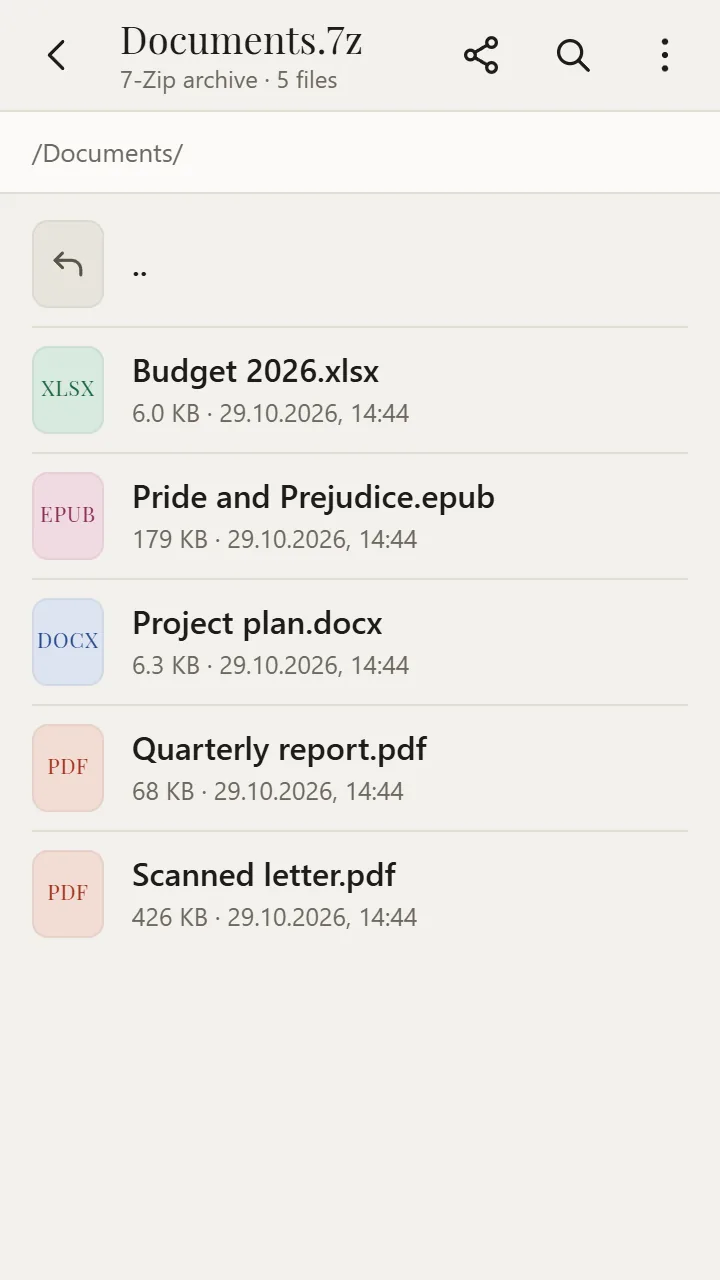
7Z is the archive format of 7-Zip, which compresses better than ZIP. On Android, the free XanderFiles app opens 7Z archives: it shows the files inside and opens them right away, without extracting — password-protected archives included.
Get it on Google PlayFree · no ads · no sign-up · offline
What is this file
7Z is used for large collections of documents, photos and books; password-protected archives are encrypted with AES-256. The Android file viewer only understands ZIP.
How to open it
- Install XanderFiles from Google Play. It is free, with no ads and no sign-up.
- Tap the .7z file wherever you have it: in Downloads, in Telegram, WhatsApp or in an email attachment.
- When Android asks which app to use, choose XanderFiles. Or the other way round: open XanderFiles, tap “Open file” and pick the file in Downloads or Google Drive.
- The list of files and folders opens. Tap a file and it opens right away; for a password-protected archive the app asks for the password.
What you can do
- See what is inside, with folders and sizes
- Open any file inside without extracting: documents, photos, books
- Password-protected archives
- Send a file from the archive to a messenger or Google Drive with “Share”
- Also RAR, ZIP, TAR, GZ, XZ, ISO, CAB and more
Good to know
- XanderFiles cannot create archives, only open them.
Questions
Can it open a password-protected 7Z?
Yes: enter the password when the app asks. It is kept only while the archive is open.
Do I have to extract the archive?
No. Files open straight from the archive; there is no need to extract everything.
Is it free?
Yes. No ads, no sign-up, and it works offline.
Other formats
Get it on Google Play
Free · no ads · no sign-up · offline